Last Updated on 12/03/2026 by admin
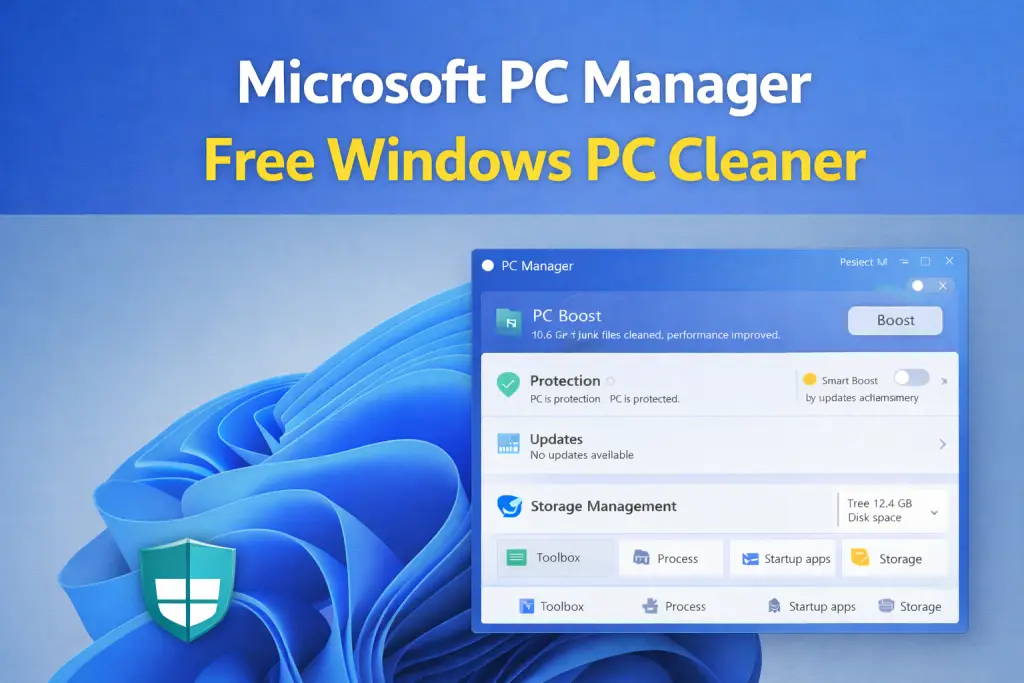
Microsoft has officially introduced Microsoft PC Manager, a built-in PC cleaning and optimization tool designed specifically for Windows users. Previously, this application was available only in limited regions, but now it is accessible worldwide.
Microsoft has historically been cautious about third-party system cleaning tools such as CCleaner because they sometimes remove important system files or introduce security risks. In fact, back in 2020 Windows Defender even flagged CCleaner as a potentially unwanted application.
Now Microsoft has released its own official solution. In this article, we will explore the features of Microsoft PC Manager, how it works, and whether it is worth installing on your computer.
Getting Started with Microsoft PC Manager
Downloading and Installation
You can download Microsoft PC Manager directly from the official website or through the Microsoft Store. Once installed, the application icon appears in your system tray.
Click Start to launch the tool. During the first launch you may see a prompt offering a quick toolbox for accessing useful Windows features such as screenshots and system tools.
Initial Performance Check
To understand its performance impact, you can open Task Manager and monitor resource usage.
- CPU Usage: Around 0% to 0.3%, which is extremely low.
- Memory Usage: Initially around 118 MB.
This may seem slightly high on low-RAM systems, but after running for some time it usually drops to around 70 MB.
Navigating the PC Manager Dashboard
PC Boost
The PC Boost feature shows the current memory usage and temporary files stored on your system.
By clicking the Boost button, PC Manager automatically clears temporary files and optimizes memory usage to improve system performance.
Another useful option is Smart Boost. When enabled, the software automatically cleans temporary files and optimizes RAM whenever usage becomes high.
Settings and Customization
The settings section allows you to configure several useful options.
- Customize shortcut keys
- Enable or disable startup with Windows
- Switch between dark mode and light mode
- Change application language
Most users prefer Dark Mode because it provides better visibility.
Protection and System Updates
Virus and Threat Protection
PC Manager integrates directly with Windows Security. It provides quick access to Windows Defender for scanning viruses and threats.
Windows Update
You can also check for Windows updates directly from within PC Manager. This simplifies the update process without navigating through multiple Windows settings menus.
Default Browser Management
The tool also allows you to change your default browser quickly without going through complex Windows settings.
Taskbar and Storage Management
Taskbar Repair
The Taskbar Repair feature helps resolve common taskbar problems and restore default toolbar settings. It can also enable widgets on the taskbar.
Storage Management
Storage management is one of the most useful sections of PC Manager.
When you click Scan, the software analyzes storage usage and shows temporary files, large files, and other removable data.
It also provides features such as:
- Duplicate File Finder – detects duplicate photos, videos, and documents
- Storage Sense – helps clean unnecessary files automatically
Application and Process Management
Process Management
You can view all background processes currently running on your system. If your PC feels slow, you can end unnecessary tasks to improve performance.
Startup Applications
PC Manager allows you to manage which applications launch when Windows starts. Disabling unnecessary startup programs can significantly reduce boot time.
Application Management
The tool also redirects you to Windows application settings where you can uninstall or disable installed programs.
Toolbox and Additional Features
Desktop Toolbox
The desktop toolbox provides quick access to PC Manager features such as boosting system speed and capturing screenshots.
Built-in Tools
Several basic utilities are included inside the interface:
- Notepad
- Calculator
- Screen Recorder
System Restore Recommendations
The Restore section provides optimization suggestions based on your system configuration and performance status.
Performance Review
After testing Microsoft PC Manager, the performance results were quite positive.
- CPU Usage: stays between 0% and 0.3%
- Memory Usage: reduces from 118 MB to around 73 MB after stabilization
This indicates that the tool manages system resources efficiently.
Final Verdict
Microsoft PC Manager provides a simple and safe way to clean and optimize Windows computers. Because it is developed by Microsoft itself, it integrates smoothly with Windows and avoids many risks associated with third-party cleaning software.
Features such as duplicate file finder, storage management, and system boosting make it a useful tool for everyday PC maintenance.
Conclusion
Overall, Microsoft PC Manager is a reliable solution for users who want a lightweight and integrated PC cleaning tool.
If you are looking for a basic yet effective optimizer without installing third-party utilities, Microsoft PC Manager is definitely worth trying.
Frequently Asked Questions
Is Microsoft PC Manager safe to use?
Yes, Microsoft PC Manager is developed by Microsoft and integrates directly with Windows Security, making it safer than many third-party cleaning tools.
Does Microsoft PC Manager improve PC performance?
Yes, it can improve performance by cleaning temporary files, managing startup applications, and optimizing memory usage.
Is Microsoft PC Manager free?
Yes, the application is completely free and available through the Microsoft Store.