Last Updated on 12/03/2026 by admin
Many Windows users want to run Android apps and games on their computers. The most common method is using Android emulators, but emulators often consume a large amount of RAM and CPU resources, which can slow down the system.
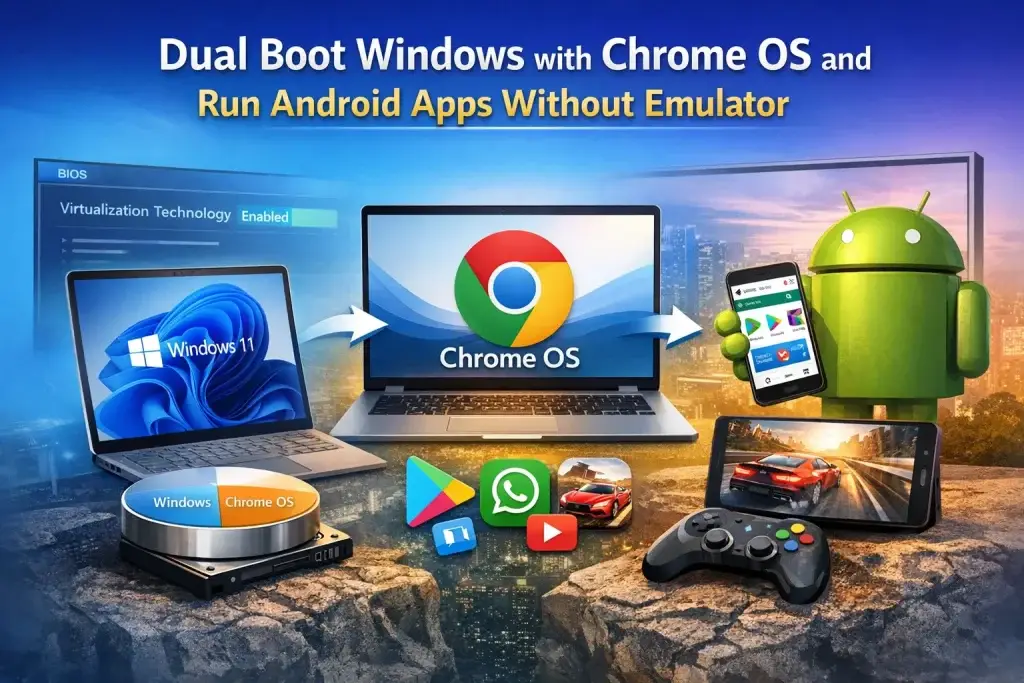
A better alternative is installing Chrome OS alongside Windows through a dual boot setup. Chrome OS includes native support for Android apps through the Google Play Store, allowing users to run mobile applications directly on their computers with better performance.
This guide explains how to dual boot Windows 10 or Windows 11 with Chrome OS so you can run Android apps and games without using an emulator.
Preparing Your Computer for Chrome OS
Before installing Chrome OS, you need to create a dedicated disk partition. This ensures that Chrome OS installs safely without affecting your Windows installation.
Open Disk Management by right-clicking the Windows Start icon and selecting Disk Management from the menu.
Locate the main system drive, usually labeled as the C drive. Right-click on the C drive and select Shrink Volume. Windows will calculate the available space that can be reduced.
It is recommended to allocate between 50 GB and 100 GB for Chrome OS so there is enough storage for the system and applications.
After shrinking the drive, you will see unallocated space. Right-click on the unallocated space and select New Simple Volume. Follow the wizard and create a new partition. You can name the partition Chrome OS for easier identification.
Installing Windows Subsystem for Linux
Chrome OS installation requires a Linux environment. Windows provides this through Windows Subsystem for Linux, commonly known as WSL.
Open Command Prompt with administrative privileges. You can do this by searching for CMD in the Windows search bar, right-clicking it, and selecting Run as administrator. Then type the following command and press Enter.
wsl --installThis command installs WSL along with the Ubuntu Linux distribution. After installation, your computer may ask for a restart.
When the system starts again, Ubuntu will open automatically and ask you to create a username and password for the Linux environment.
Enabling Virtualization
Virtualization must be enabled for Chrome OS to run properly.To check this, right-click the Windows Start icon and open Task Manager. Go to the Performance tab and select CPU. If virtualization is enabled, you can continue.If it is disabled, you need to enable it in the BIOS settings.
Restart your computer and enter the BIOS or UEFI setup. This is usually done by pressing keys such as F2, F10, Delete, or Esc during startup.
Inside the BIOS menu, find the CPU or System Configuration section and enable the option called Virtualization Technology or Intel VT-x / AMD-V. Save the settings and reboot your system.
Downloading Chrome OS and Required Tools
To install Chrome OS, you need two important files. The first is the Chrome OS recovery image and the second is the Brunch framework.
Download the correct Chrome OS recovery image that matches your processor generation.
Then download the latest version of Brunch, which allows Chrome OS to run on standard PC hardware.
After downloading both files, extract the zip archives and place them inside a single folder named ChromeOS.
Preparing the Installation Files
Inside the ChromeOS folder, make sure that the Chrome OS image files and the Brunch files are located in the same directory.
This ensures the installation script can easily find the required files during the setup process.
Installing Chrome OS Using Linux
Open the Ubuntu terminal that was installed through WSL.First update the Linux package list and install the required tools by running the following commands.
sudo apt updatesudo apt install pv cpio gzip unzipAfter installing the required packages, navigate to the folder containing the Chrome OS files.
For example
cd /mnt/c/ChromeOSThen run the installation script to create the Chrome OS image.
sudo bash chromeos-install.sh -src chromeos-bin -dst /mnt/<drive_letter>/chromeos.img -s <size_in_gb>Replace the drive letter and size according to your system configuration.
Setting Up Dual Boot
To choose between Windows and Chrome OS during startup, a boot manager must be installed.You can install a tool such as Grub2Win. After installing it, create a new boot entry for Chrome OS.
This will allow the system to display a boot menu whenever the computer starts.
Booting Into Chrome OS
Restart your computer. During startup, you will see the boot menu where you can choose Chrome OS.
The first boot may take a few minutes because Chrome OS needs to configure the system.
After the setup process finishes, connect to the internet and sign in with your Google account.
Running Android Apps on Chrome OS
Once Chrome OS is set up, open the Google Play Store.
You can now download Android apps and games just like you would on a smartphone or tablet.
Chrome OS runs Android applications natively, so performance is often better compared to using traditional Android emulators.
Switching Back to Windows
Whenever you want to return to Windows, simply restart your computer and select Windows from the boot menu.
Both operating systems remain installed independently, allowing you to switch between them whenever needed.
Conclusion
Dual booting Windows with Chrome OS is an effective way to run Android applications on a computer without relying on heavy emulators.
With Chrome OS installed alongside Windows, users can access the Google Play Store, enjoy better performance for Android apps, and take advantage of two powerful operating systems on a single machine.
If you want, I can also give you
Frequently Asked Questions
Can I run Android apps on Chrome OS without an emulator?
Yes. Chrome OS supports Android apps through the Google Play Store, so you can run Android apps directly.
Is it safe to dual boot Windows with Chrome OS?
Yes. Dual booting is safe if Chrome OS is installed on a separate partition.
How much storage is required for Chrome OS?
It is recommended to allocate 50GB to 100GB of disk space.